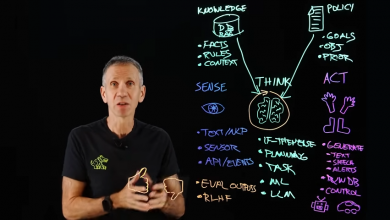
This tutorial guides you through creating a simple AI agent using Google's Agent Development Kit (ADK) and Gemini CLI. ADK is an open-source framework for building intelligent agents, while Gemini CLI is a command-line tool that helps with "vibecoding"—generating code and ideas through natural language conversations with the Gemini model. We'll build a basic weather agent that can fetch weather information, using Gemini CLI to brainstorm and generate parts of the code, and ADK to structure and run the agent.
The example extends to include features like tools, memory, and guardrails for a more robust agent. By the end, you'll have a working agent you can interact with via terminal or a web UI.
Prerequisites
- Basic Python knowledge (version 3.12 recommended).
- Familiarity with command-line tools.
- A Google Cloud account with a project set up (free trial works for testing).
- Access to API keys for Gemini (via Google AI Studio or Vertex AI).
- Install necessary tools: Git, a code editor (e.g., VS Code), and a terminal.
You'll need to enable billing in your Google Cloud project for Vertex AI usage, but costs are minimal for this tutorial.
Step 1: Set Up Your Google Cloud Environment
-
Create a Google Cloud Project:
- Go to the Google Cloud Console.
- Enter a project name (e.g.,
ai-agent-tutorial). - Select "No Organization" and link a billing account.
- Note your Project ID (e.g.,
ai-agent-tutorial-12345).
-
Enable Vertex AI API:
- In the console, search for "Vertex AI" and enable the API.
- Alternatively, use Cloud Shell (open from the console top-right icon) and run:
gcloud config set project YOUR_PROJECT_ID
gcloud services enable aiplatform.googleapis.com
-
Get a Gemini API Key (if using Google AI backend):
- Go to Google AI Studio.
- Create an API key for Gemini.
Step 2: Install ADK and Gemini CLI
-
Create a Project Directory and Virtual Environment:
mkdir weather-agent cd weather-agent python3 -m venv .venv source .venv/bin/activate -
Install ADK:
pip install google-adkThis installs the Agent Development Kit.
-
Install Gemini CLI:
pip install gemini-cli- Configure it with your API key:
gemini config --api-key YOUR_GEMINI_API_KEY - For Vertex AI integration, set environment variables in a
.envfile (more on this later).
- Configure it with your API key:
-
Optional: Install LiteLLM for Multi-Model Support:
pip install litellmThis allows using models like GPT or Claude alongside Gemini.
Step 3: Use Gemini CLI to Ideate and Plan the Agent
Gemini CLI helps brainstorm the agent's design before coding.
-
Start Gemini CLI:
geminiThis opens an interactive chat session.
-
Load ADK Knowledge:
- Download
llms-full.txtfrom the ADK GitHub repo and place it in your directory. - In Gemini CLI:
/memory add @llms-full.txtThis loads ADK documentation into the CLI's context.
- Download
-
Brainstorm the Plan:
- Prompt:
I want to build an AI agent using ADK that answers weather queries for any city. It should use a tool to fetch weather data (mock it for now). Come up with a step-by-step plan, including code structure. - Gemini CLI will respond with a plan, e.g.:
- Phase 1: Set up project and install dependencies.
- Phase 2: Define tools (e.g.,
get_weatherfunction). - Phase 3: Create the agent with Gemini model and instructions.
- Phase 4: Run and test.
- Prompt:
-
Generate Initial Code:
- Prompt:
Based on the plan, generate the Python code for the agent.py file using ADK. Use gemini-2.5-flash model via Vertex AI. - Copy the generated code (e.g., agent definition) into a new file
agent.py.
Example generated code snippet:
from google.adk.agents import Agent from google.adk.tools import Tool def get_weather(city: str) -> str: """Fetches weather for a city.""" # Mock data return f"The weather in {city} is sunny and 75°F." root_agent = Agent( model='gemini-2.5-flash', name='weather_agent', description='An agent that provides weather information.', instruction='You are a helpful weather assistant. Use the get_weather tool when needed.', tools=[Tool(get_weather)], ) - Prompt:
-
Exit Gemini CLI:
/exit
Step 4: Configure and Build the Agent with ADK
-
Create .env File for Configuration:
In your project directory, create.env:GOOGLE_GENAI_USE_VERTEXAI=1 GOOGLE_CLOUD_PROJECT=YOUR_PROJECT_ID GOOGLE_CLOUD_LOCATION=us-central1 -
Add Tools and Instructions:
- Refine
agent.pybased on Gemini CLI output. - Ensure tools have docstrings for ADK to understand them.
- Refine
-
Add Advanced Features (Optional but Recommended):
-
Memory (Session State):
UseInMemorySessionServiceto persist data like user preferences.
Example in arun.pyfile:from google.adk.runners import Runner from google.adk.sessions import InMemorySessionService from .agent import root_agent runner = Runner(agent=root_agent, session_service=InMemorySessionService()) response = runner.call_agent("What's the weather in New York?") print(response) -
Guardrails:
Add callbacks toagent.py:def before_tool_callback(tool_name, args): if args.get('city') == 'Paris': raise ValueError("Access denied for Paris.") return args root_agent.before_tool_callback = before_tool_callback -
Multi-Agent Setup:
Define sub-agents for delegation (e.g., a greeting sub-agent).greeting_agent = Agent( model='gemini-2.5-flash', name='greeting_agent', description='Handles greetings.', instruction='Greet the user politely.' ) root_agent.sub_agents = [greeting_agent]
-
Step 5: Run and Test the Agent
-
Run in Terminal:
adk run .- Interact:
[user]: What's the weather in London? [weather_agent]: The weather in London is rainy and 55°F. - Type
exitto stop.
- Interact:
-
Run Web UI for Development:
adk web- Access at
http://localhost:8000(or use port forwarding if remote). - Chat in the browser; view debug info like message history.
- Access at
-
Test with Gemini CLI Assistance:
- If issues arise, restart Gemini CLI and prompt: "Debug this error in my ADK agent: [paste error]."
Step 6: Iterate and Deploy
-
Improve with Gemini CLI:
- Back in Gemini CLI: "Add a new tool to fetch real weather via API to my agent code."
- Update code accordingly (e.g., integrate OpenWeatherMap API).
-
Evaluate the Agent:
- Create an eval set (JSON file with test queries).
- Run:
adk eval --eval-set eval.json.
-
Deployment:
- Package into a Docker container using a
cloudbuild.yamlfor CI/CD. - Deploy to Cloud Run:
gcloud run deploy weather-agent --image gcr.io/YOUR_PROJECT_ID/weather-agent - Trigger builds via Google Cloud Build for automation.
- Package into a Docker container using a
Troubleshooting
- API Errors: Ensure Vertex AI is enabled and Project ID is correct in
.env. - Model Access: If using Vertex AI, confirm region supports the model.
- Costs: Monitor usage in Google Cloud Console; disable APIs when done.
- Cleanup: Delete the project or disable services to avoid charges.
This tutorial provides a foundation for building more complex agents, like multi-agent teams or production-ready apps. Experiment by extending the weather agent to handle real APIs or user preferences. For more, check ADK docs or advanced codelabs.